How to Attach Images to your Mind Maps While Listening to the Lecture
Learn how to add images and presentation slides into your mind map. This guide helps you streamline the process of organizing multimedia resources into your mind maps for better visualization and study.
-
Start a new map on ivvi.dev

-
Click "New" at the center

-
Click "YouTube to Map"

-
Switch to your youtube tab and click the video player of selected video content

Adding a Screenshot to the Map
-
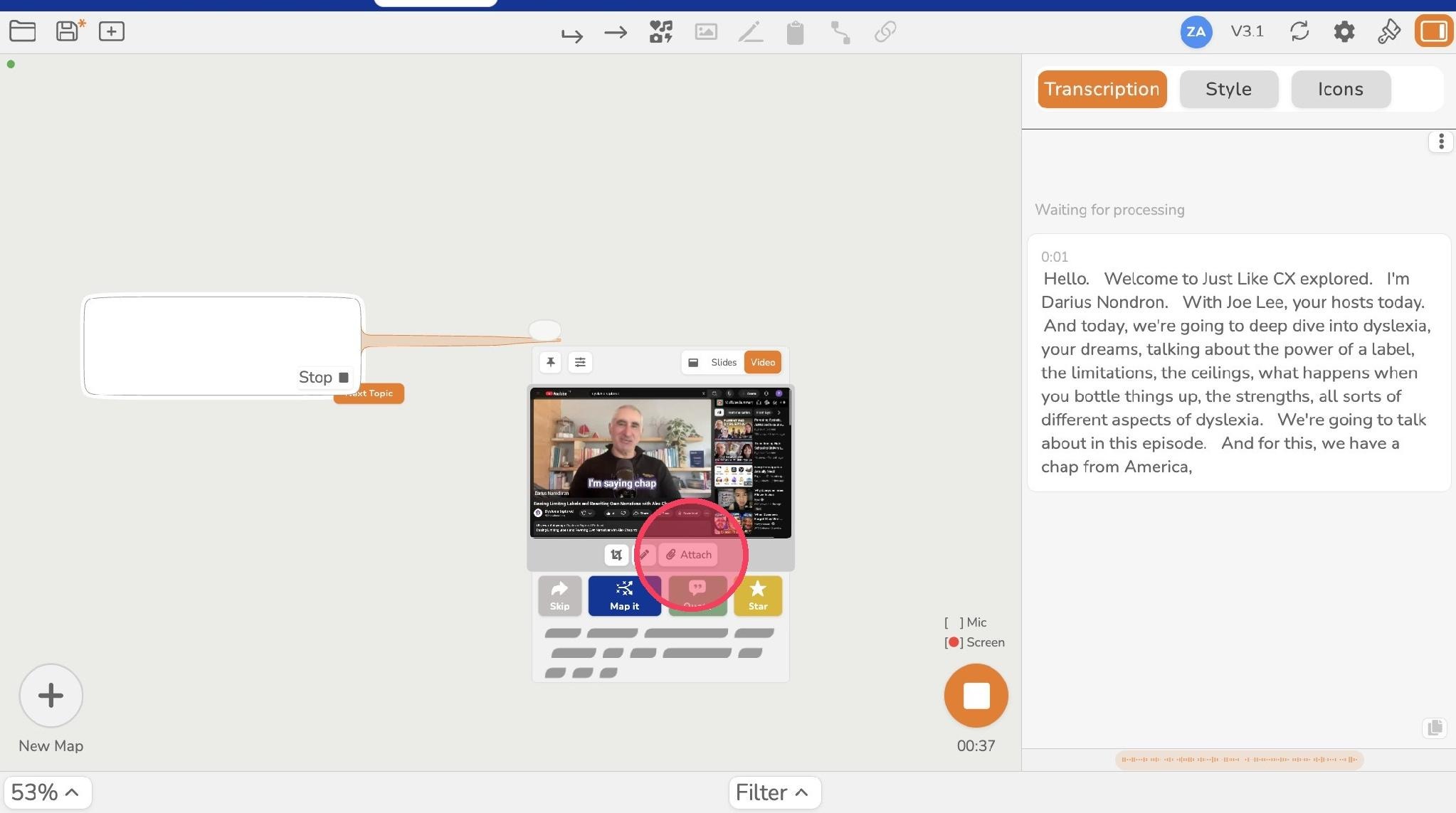
Switch back to ivvi tab and Click "Attach" to add a screenshot of the page that the video was on.
-
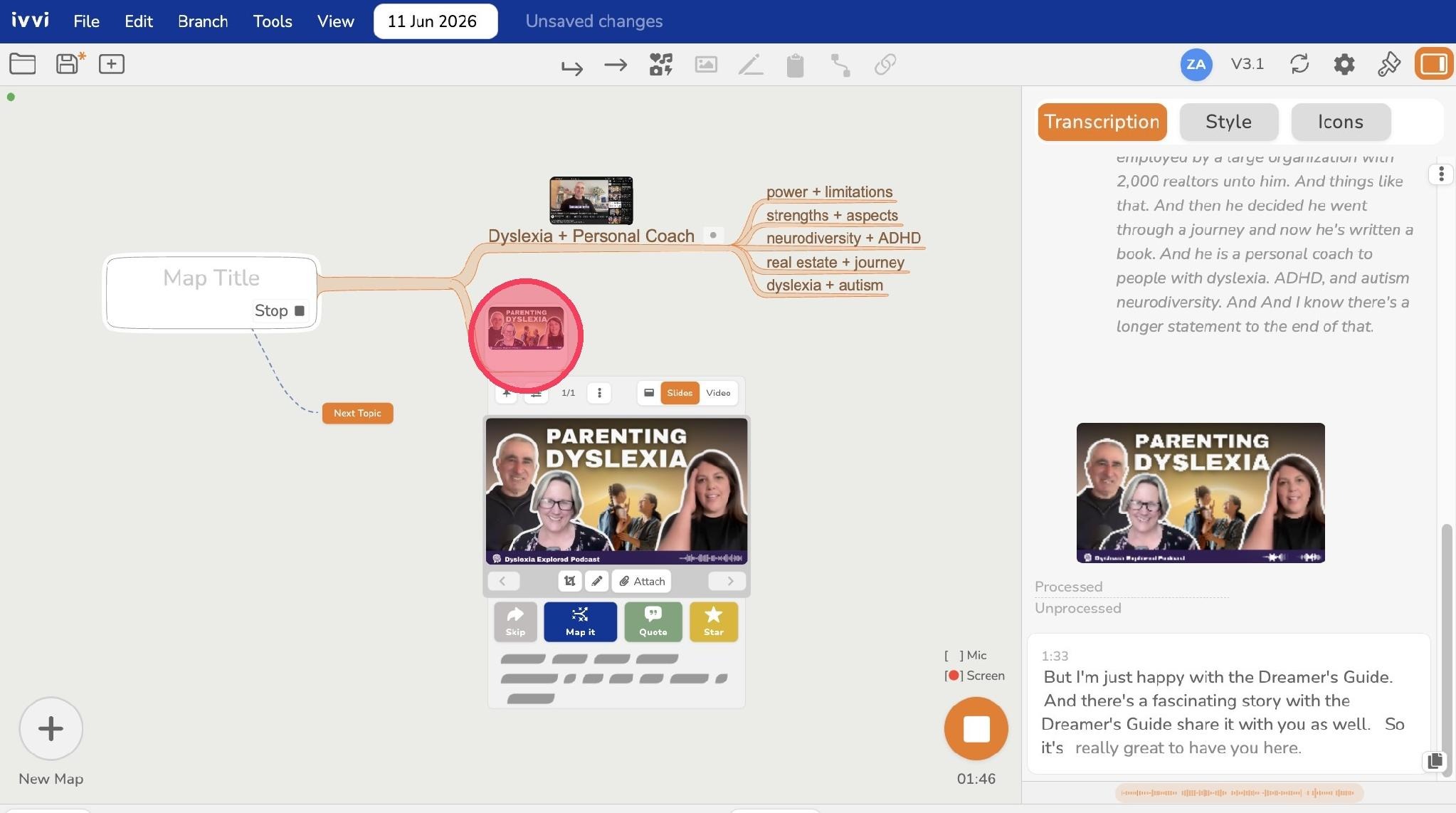
As you can see a screenshot has been added to the map.
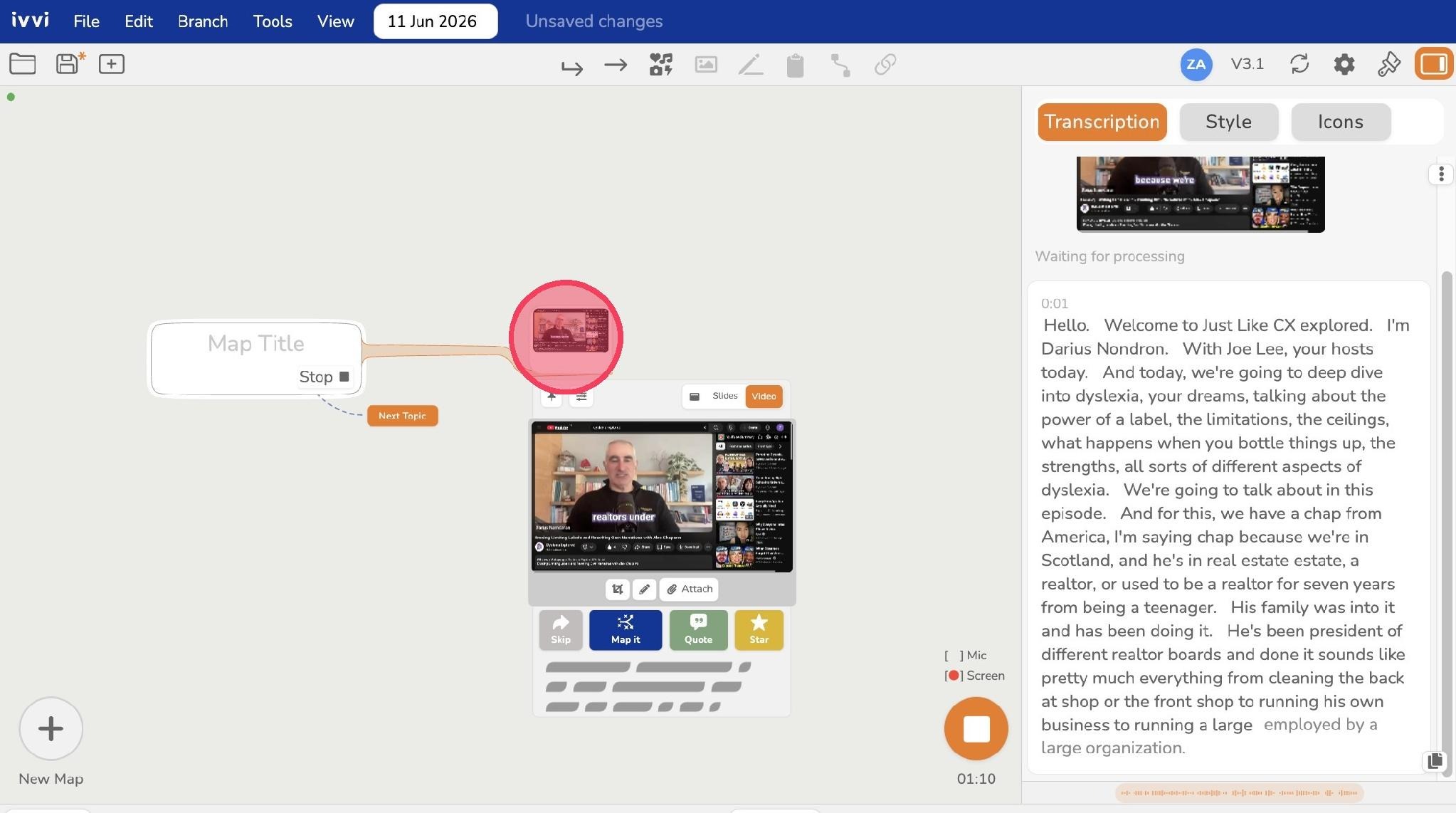
Image File Attachment
-
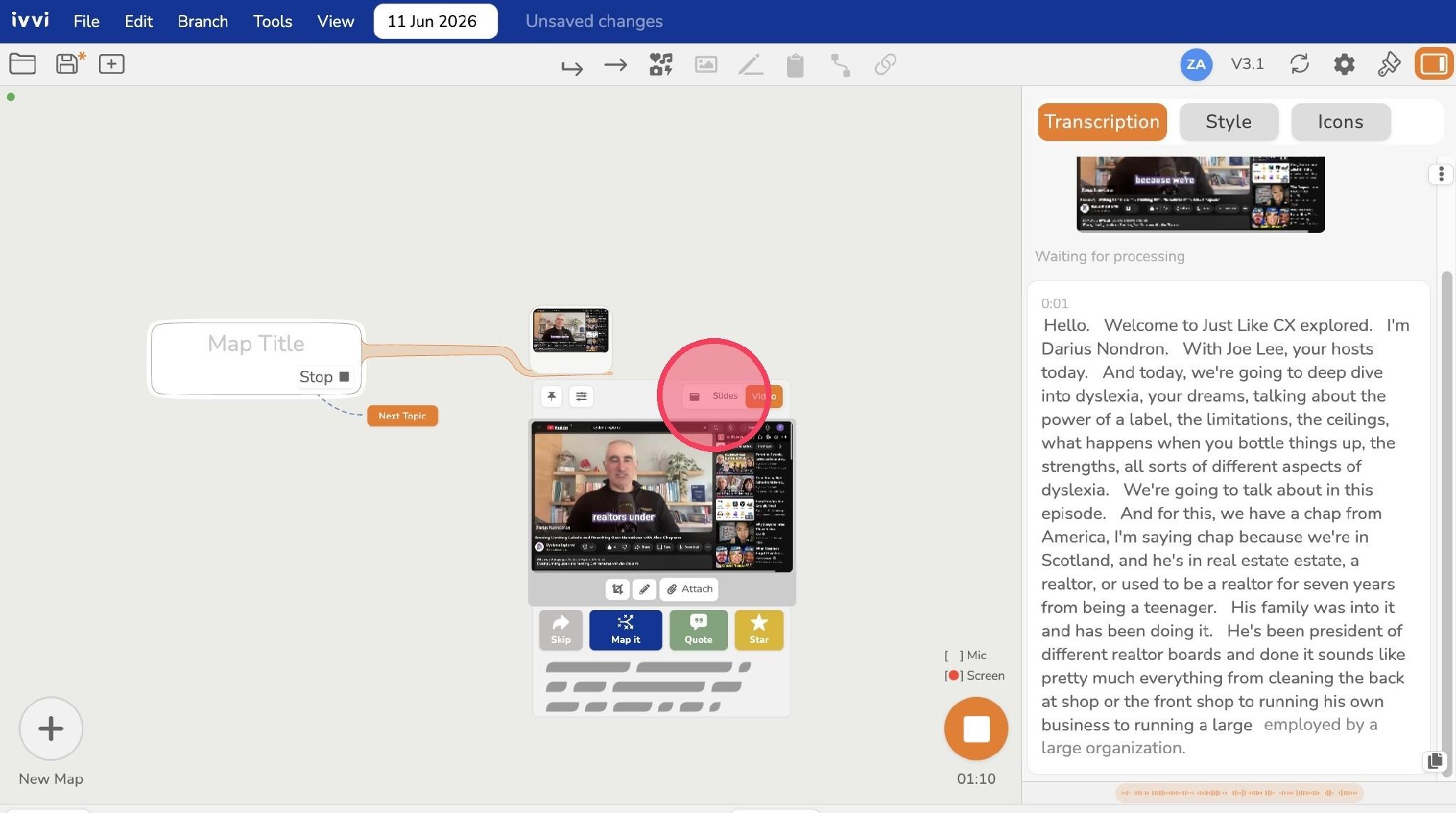
To add an image from your device files, click "Slides"
-
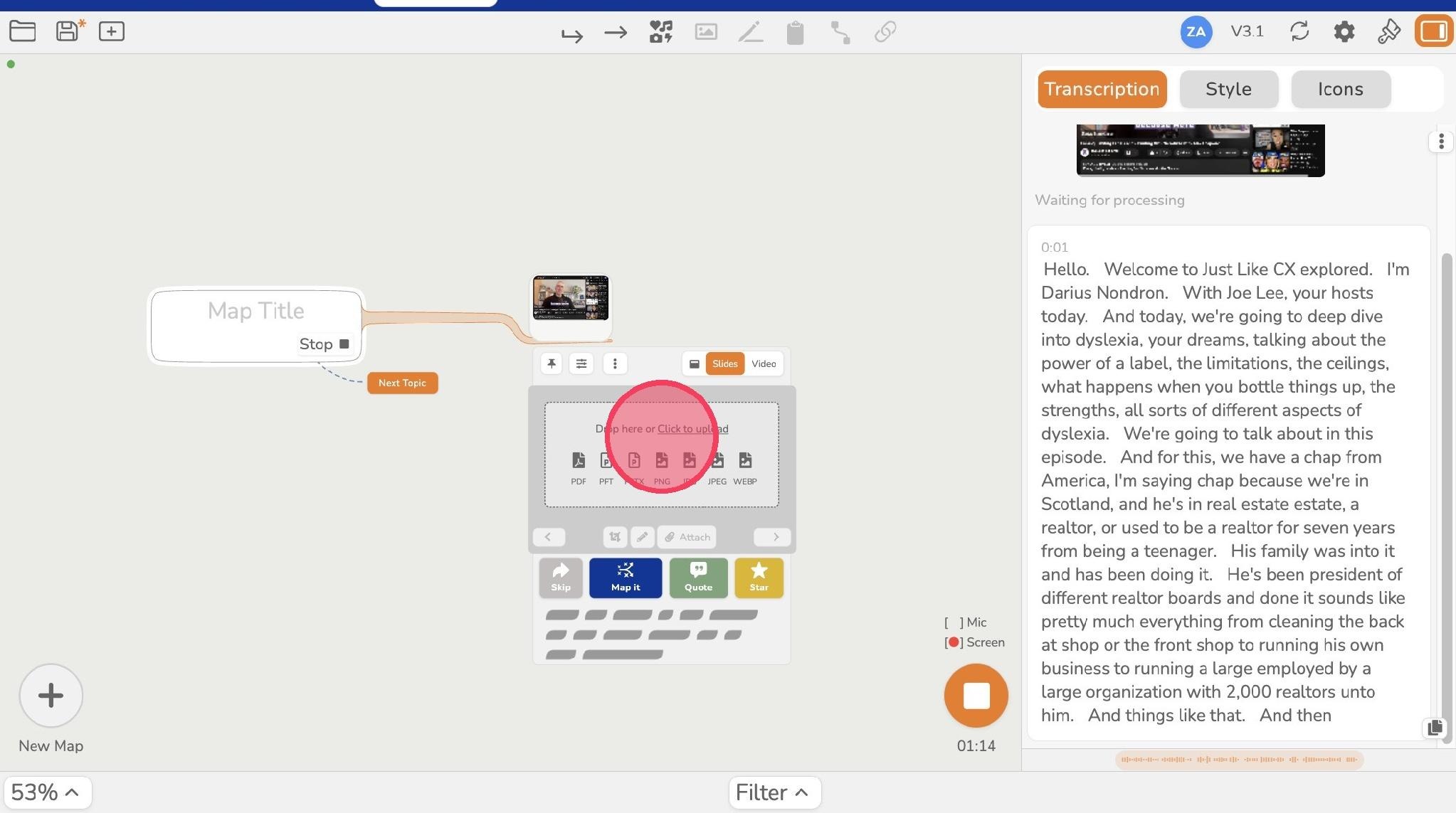
Click the upload area to select your file or drop your file directly on the area.
-
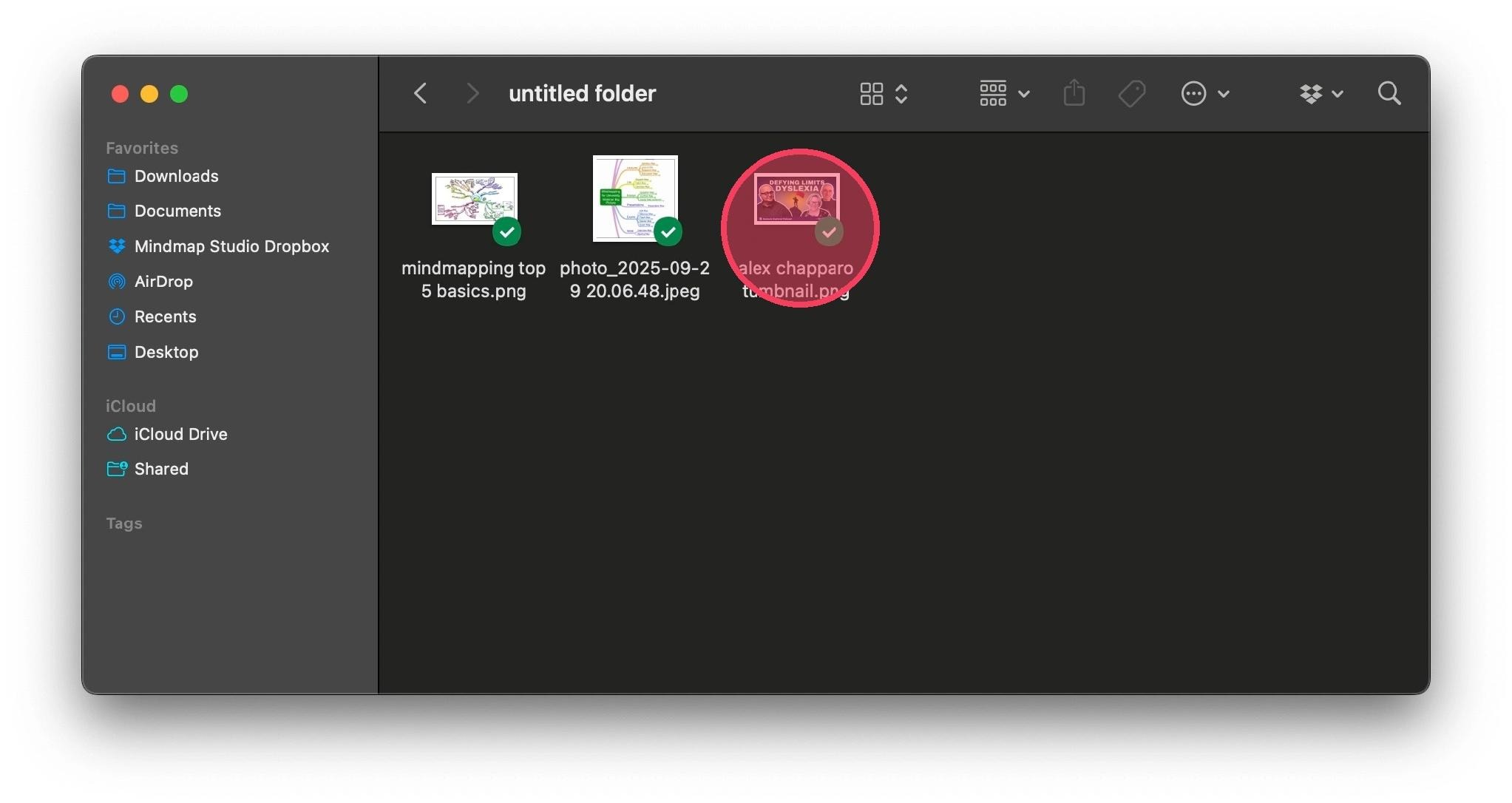
Select the image that you want to add.
-
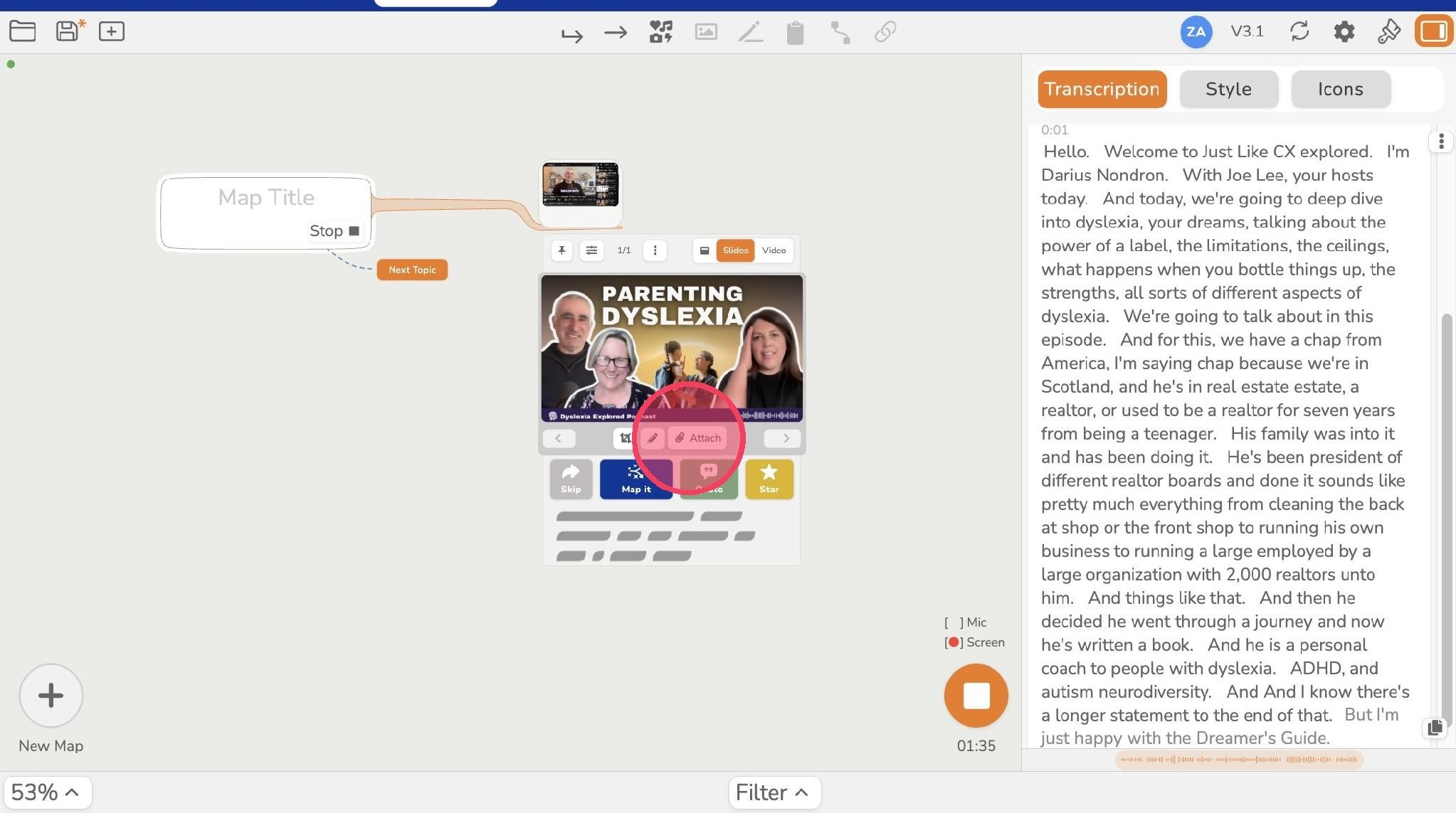
Once the image is uploaded, click "Attach" button
-
There you have it. You've added a screen shot of the video and you also added an image from your files.